Newborn Photo Editing: How to Edit Baby Photos Like a Pro (2026)

Newborn Photo Editing: How to Edit Baby Photos Like a Pro (2026)
You finally got the shot. Baby is sleeping peacefully, the light is soft, and somehow everything came together in that one perfect moment. Then you open it on your phone — and it's just… a little flat. The skin looks a bit red, the background is distracting, and it doesn't feel like the magical image you remember seeing through the viewfinder.
That's where newborn photo editing comes in.
Whether you're a new parent capturing your own memories or a photographer building a newborn portfolio, a solid editing workflow can take your baby photos from "pretty good" to genuinely breathtaking. This guide walks you through everything — basic workflow, skin retouching, color correction, background cleanup, the best tools, and how AI is making professional-quality edits accessible to everyone.
Why Newborn Photo Editing Is Different
Editing newborn photos isn't quite like editing any other type of portrait. Babies have:
- Thin, translucent skin that shows red and blue tones much more intensely than adult skin
- Rapid changes in coloring — they flush, blotch, and shift colors moment to moment
- Delicate features that can easily look over-processed if you're heavy-handed
- Tiny textures (lanugo hair, vernix, birthmarks) that you may or may not want to preserve
The goal of newborn photo editing isn't to make the baby look like a different baby — it's to make the photo look like how you remember the moment felt. Warm, soft, calm, and full of love.
With that in mind, let's build your editing workflow from the ground up.
Step 1: The Basic Newborn Photo Editing Workflow
Before touching any sliders, establish a consistent order of operations. Jumping around randomly leads to inconsistent results and a lot of backtracking.
1. Cull First, Edit Second
Don't edit every photo you took. Cull down to your favorites first — the sharpest shots with the best light and expressions. Editing takes time, and you'll produce better work when you're focused on a smaller, intentional set.
2. Set Your Exposure
Start with overall brightness. Newborn photos often benefit from a slightly brighter exposure than you'd use for adults — airy and luminous tends to feel more true to the mood. Adjust the Exposure slider first, then refine with Highlights, Shadows, and Whites.
Common adjustment:
- Exposure: +0.3 to +0.7
- Highlights: -20 to -40 (to recover blown-out skin or windows)
- Shadows: +10 to +20 (to open up darker areas without blowing exposure)
3. White Balance Is Everything
This is the single most important adjustment for newborn photos. A too-warm image makes the baby look jaundiced. Too cool, and they look sick. Aim for natural skin tones that look like healthy, peachy baby skin under soft light.
Start with Auto white balance, then dial it in manually. Most indoor newborn photos benefit from:
- Temperature: 4,500–5,500K
- Tint: slight green (+3 to +8) to neutralize the magenta that often appears in baby skin
4. Apply Your Style
Once your technical foundation is solid, apply your creative look — whether that's clean and airy, moody and dark, or classic film. More on specific color grading approaches in the section below.
Step 2: Newborn Skin Retouching (The Safe Way)
This is where beginners make the biggest mistakes. Over-retouched newborn skin looks plastic and fake — and you'll regret it in 10 years. The goal is refinement, not perfection.
What to Fix
- Redness and blotchiness: Newborns often have red patches from birth, especially on the face, knuckles, and feet. These are normal but can be toned down.
- Temporary marks: Scratches from fingernails, pressure marks from poses, and peeling skin from the first week can all be softened.
- Under-eye shadows: Caused by the thin skin around newborn eyes, these can make babies look tired in ways they don't in real life.
What NOT to Fix
- The soft texture of newborn skin (keep it — it's beautiful)
- Birthmarks (unless specifically requested by the parents)
- Natural skin variation (some babies are fairer or darker in different areas)
- Lanugo hair on the back or ears
How to Retouch Safely
In Lightroom: Use the Healing Brush on a low opacity (20–40%) to blend blotchy areas. Use the HSL panel to reduce saturation in the Red channel slightly — this does more to calm skin tone than spot editing every blemish.
In Photoshop: Frequency separation is the gold standard for skin retouching. It lets you smooth texture and correct color independently so you don't lose skin detail. Use a very soft brush at 10–20% opacity when cloning or healing.
The golden rule: Zoom out to 25% and look at the image as a whole. If you can see your retouching, it's too heavy.
Step 3: Color Correction and Color Grading
Color Correction
Color correction comes first — it's about making the image technically accurate. For newborn photos, focus on:
- Skin tone accuracy: Use a gray card or white card reference if you shot one. Otherwise, use the white balance eyedropper on a neutral area (white wrap, white wall) to get a clean starting point.
- HSL adjustments: Pull down the Orange saturation slightly if skin looks too saturated. Pull up Orange luminance to brighten skin without adding exposure globally.
- Selective color: If you're using Photoshop, a Selective Color adjustment layer lets you target specific colors and shift them independently — powerful for correcting green-ish shadows without affecting the whole image.
Color Grading for Newborn Portraits
Once the image is technically correct, you can apply a stylistic grade. Popular looks for newborn photography:
Airy and Light:
- Lift the blacks slightly (pull the Blacks slider right in Lightroom, or raise the bottom of the tone curve)
- Boost whites and highlights
- Add a subtle warm split tone — golden in the highlights, neutral in the shadows
Muted and Milky:
- Pull back overall saturation to about -10
- Add a pastel feel by raising the black point on the curve
- Use a subtle blue-green in the shadows with warm highlights
Classic Film:
- Use a preset or LUT based on Kodak Portra or Fuji film stocks
- Slightly desaturate reds and oranges
- Add a touch of grain for texture
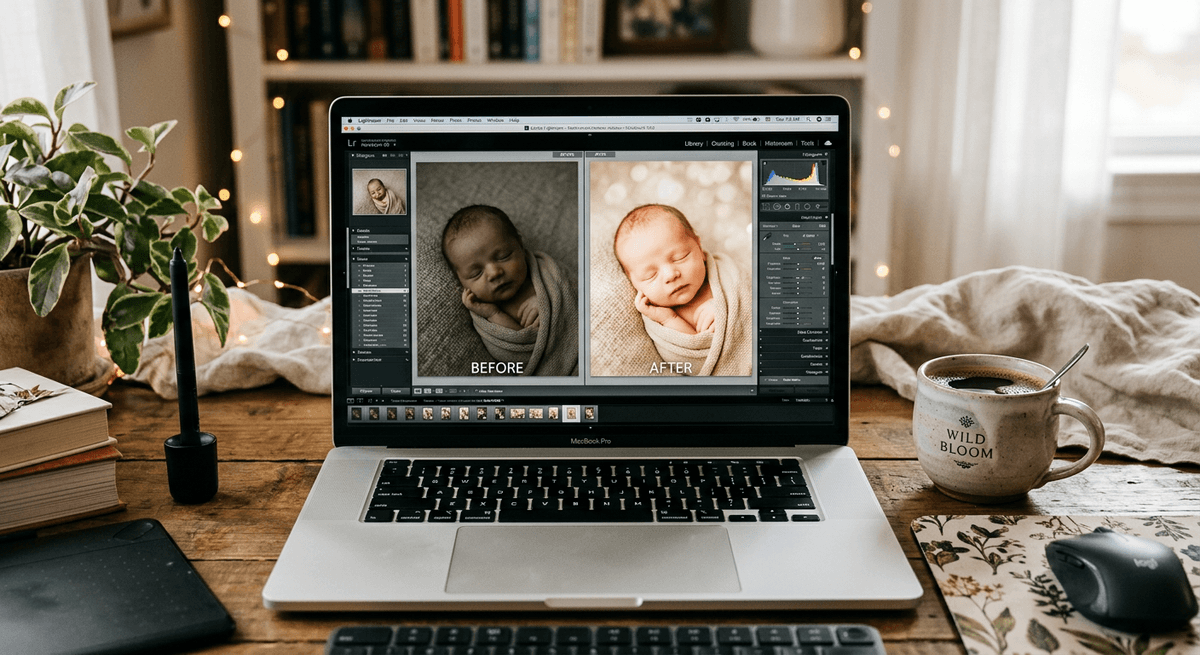
Before and After Example
Before: Raw phone photo of sleeping newborn, slightly underexposed, cooler blue tones, red blotchy patches visible on cheeks and forehead, hospital lighting creating an unflattering overhead shadow.
After: Exposure lifted by +0.5, white balance warmed from 4,200K to 5,000K, red channel saturation reduced by 15 points, highlights pulled back to reveal detail in the white swaddle, a subtle warm golden split tone applied. Result: the baby's skin looks peachy and healthy, the image feels warm and intimate, and the focus falls naturally on the face.
Step 4: Background Cleanup
Even in professional studio setups, backgrounds in newborn photos often have wrinkles in the fabric, distracting props that crept into frame, or lighting inconsistencies that pull attention away from the baby.
Common Background Fixes
Wrinkle removal: Use the Clone Stamp or Healing Brush in Photoshop to smooth out fabric wrinkles. Work parallel to the wrinkle direction and sample nearby clean fabric.
Color inconsistency: If your backdrop is off-white but photographs with a yellowish cast in some areas, use the Adjustment Brush in Lightroom (or a masked Hue/Saturation layer in Photoshop) to even out the color across the backdrop.
Removing distracting elements: Crop out partially visible props, cords, or hands that distract from the main subject.
Blurring or replacing backgrounds: If you want a completely clean backdrop but didn't use one during the shoot, AI background replacement tools can now do this remarkably well. This is one area where tools like BabyGenic AI genuinely shine — more on that below.
Best Tools for Newborn Photo Editing
Adobe Lightroom
Best for: Color correction, batch editing, organization
Lightroom remains the industry standard for portrait photographers. Its non-destructive workflow, powerful presets system, and HSL controls make it ideal for newborn photo editing. The AI masking features added in recent versions (including Subject Select and Sky Select) make selective adjustments faster than ever.
Learning curve: Moderate. The interface takes time to learn, but tutorials are widely available.
Cost: ~$10/month (Creative Cloud Photography plan)
Adobe Photoshop
Best for: Detailed retouching, composite work, background replacement
Photoshop gives you total control over every pixel. Frequency separation, healing tools, content-aware fill for background cleanup, and layer-based compositing make it the professional's choice for heavy retouching. It's overkill if you just want quick color correction — but essential for detailed work.
Learning curve: High. Photoshop has a steep learning curve but enormous power.
Cost: ~$23/month (standalone) or included in Creative Cloud Photography plan
Snapseed
Best for: Quick mobile edits, on-the-go adjustments
Google's Snapseed is the best free mobile editor available. Its Selective adjust tool lets you brush adjustments onto specific areas of the image with surprisingly good precision. For sharing to Instagram or family group chats, Snapseed's output is excellent.
Key features for newborn editing: Healing tool, Portrait mode (face detection for automatic skin smoothing), selective brightness/contrast/saturation adjustments.
Cost: Free
BabyGenic AI
Best for: Automatic AI-powered newborn photo enhancement — fast, simple, gorgeous results
🍼 Ready to see your photos transformed in seconds? Try BabyGenic AI free →
BabyGenic AI is purpose-built for baby photos. Unlike generic editing tools, its AI model has been trained specifically on newborn and infant portraits — meaning it understands the unique skin tones, soft textures, and lighting conditions that define great baby photography.
What BabyGenic AI does automatically:
- Detects and gently smooths newborn skin without losing natural texture
- Corrects color casts specific to baby skin tones
- Applies a soft, dreamy brightness that makes newborn portraits glow
- Intelligently cleans up backgrounds without removing important details
- Generates multiple style variations so you can choose the look you love
The key difference: You don't need to know anything about HSL panels, curves, or frequency separation. Upload your photo, and BabyGenic AI delivers a professionally edited result in seconds.
It's designed for parents who want stunning photos without spending hours learning complex software — and for photographers who want to speed up their workflow on routine edits.
AI-Powered Newborn Photo Editing: What's Changed
In 2024–2026, AI photo editing has moved from a novelty to a genuine productivity tool. For newborn photography specifically, AI brings a few key advantages:
Speed: What used to take a photographer 15–30 minutes per image (color correction, skin work, background cleanup) can now be done in under a minute with AI.
Consistency: AI models apply the same quality of edits across every photo in a batch — no fatigue, no drift in style as you work through 200 images from a session.
Accessibility: Parents who've never touched photo editing software can now produce gallery-quality images from their phone photos.
Intelligence about babies: Generic AI photo tools improve overall image quality but don't specifically understand newborn skin. Purpose-built tools like BabyGenic AI are trained on baby-specific data, which makes a meaningful difference in results.
Common Newborn Photo Editing Mistakes to Avoid
1. Over-Smoothing the Skin
The number one mistake. Babies have naturally soft, slightly textured skin — it should still look like skin after you're done. If the baby's cheek looks like a marble sculpture, dial it back.
2. Making the Image Too Warm
Warmth feels cozy, but too much makes the baby look jaundiced. When in doubt, cool it down slightly from where your instinct lands.
3. Heavy-Handed Sharpening
Newborn photos often look better with a touch of softness. Over-sharpening creates a harsh, clinical look that doesn't suit the subject.
4. Editing on a Poor Monitor
Colors look different on different screens. If you edit on a phone and then view on a desktop, colors will likely shift. Try to do serious editing on a calibrated monitor — or use a tool designed to output accurate results across devices.
5. Skipping Culling
Editing every single photo from a session leads to burnout and mediocre results. Pick your 10–20 best shots and edit those with real attention.
6. Removing Everything Unique
Birthmarks, stork bites, and Mongolian spots are part of your baby's story. Unless the parents specifically request removal, preserve the things that make their child uniquely theirs.
🌟 Skip the learning curve. BabyGenic AI edits your newborn photos automatically — beautiful results in seconds, no experience required. Start for free →
FAQ: Newborn Photo Editing
How do I edit newborn photos on my phone?
The easiest approach is to use a dedicated app. Snapseed (free) gives you solid manual control for mobile editing — use the Selective tool for skin adjustments and Tune Image for overall brightness and color. For even faster results with AI-powered edits, BabyGenic AI works directly from your phone and handles the complex adjustments automatically.
What's the best free newborn photo editing app?
Snapseed is the best free option for mobile editing with manual controls. For AI-powered automatic edits, BabyGenic AI offers a free tier that lets you experience what purpose-built baby photo AI can do.
How do I fix red and blotchy newborn skin in photos?
In Lightroom, go to the HSL panel and reduce the saturation on the Red and Orange channels by 10–20 points. This is often more effective than spot-healing every blotchy area. You can also use the Adjustment Brush to paint a slight desaturation over specific red patches. In BabyGenic AI, this is handled automatically during the AI edit.
Should I edit newborn photos in RAW or JPEG?
Always shoot and edit in RAW if your camera supports it. RAW files retain far more data than JPEGs, giving you much more flexibility to correct exposure, white balance, and color without degrading quality. If you're shooting on a phone, most recent iPhones and Android flagships offer a ProRAW or RAW mode — use it.
How long does newborn photo editing take?
Manual editing in Lightroom or Photoshop typically takes 5–30 minutes per image depending on complexity. A full newborn session (20–40 final images) can easily take 4–10 hours. AI-powered tools like BabyGenic AI reduce this to seconds per image, making them especially valuable for parents or photographers with large volumes to process.
Is it okay to heavily edit newborn photos?
Light to moderate editing is completely normal and expected — professional newborn photographers edit every image they deliver. The key is to keep edits tasteful: correct the technical imperfections, enhance the mood, and clean up distractions. Avoid heavy skin smoothing that removes all texture, extreme color grades that look artificial, or digital alterations that misrepresent what the baby actually looked like.
Final Thoughts
Newborn photo editing is equal parts technical skill and artistic restraint. The technical skills — exposure, white balance, skin tones, color grading — can be learned. The restraint comes from understanding that the best newborn photos feel real: warm, soft, and true to the moment.
Start with a solid workflow, use the right tools for your skill level, and remember that less is often more when it comes to retouching delicate baby skin.
And if you want beautiful results without spending weeks learning complex software?
🍼 BabyGenic AI was built for exactly this. Upload your newborn photos and watch AI turn them into something you'll print, frame, and keep forever. Try it free at BabyGenic.ai →
Written by the BabyGenic AI Team. BabyGenic AI is purpose-built AI photo editing software for newborn, baby, and family portraits.